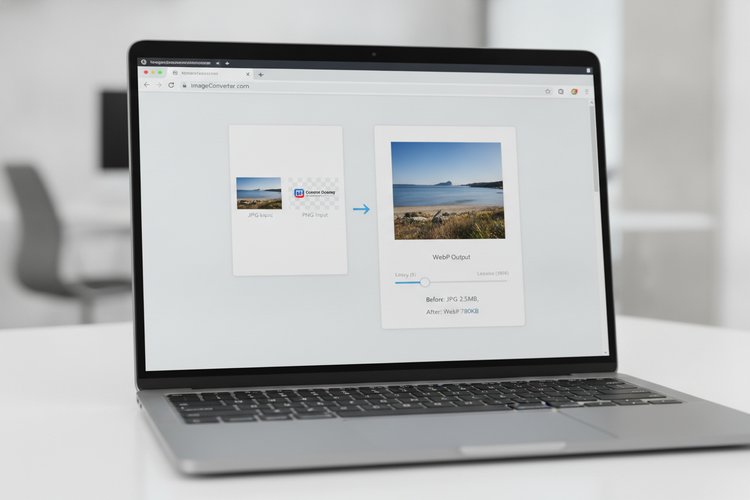
Convert JPG and PNG images to WebP in your browser with this free WebP converter. Adjust image quality, compare file sizes, preview the result, and download a WebP copy without uploading the original image to a WordPress server.
Convert JPG or PNG to WebP Online
Select an image, choose a quality level, and download the converted static WebP file.
For the smoothest experience, use an image under 20 MB. Very large images can use substantial browser memory.
If your mobile browser opens the image instead of downloading it, use its share or download menu to save the file.
What Is WebP and Why Use It?
WebP is a modern image format developed for the web. It supports lossy and lossless compression, transparency, and animation. Google explains that WebP can provide smaller files than comparable JPEG and PNG images while maintaining useful visual quality. This converter creates static WebP images from JPG and PNG files; it does not create animated WebP files. Smaller images can reduce page weight, which may help pages load faster on mobile connections.
WebP is not automatically better for every image. A PNG may still be preferable for certain graphics, screenshots, or images where pixel-perfect lossless output is important. The best format depends on the image and the quality setting you choose.
How to Convert JPG and PNG Images to WebP
- Select a JPG, JPEG, or PNG image in the converter.
- Choose a quality level. A setting around 75–85% is a practical starting point for photographs.
- Select Convert to WebP.
- Review the preview and file-size message.
- Download the converted WebP file.
The conversion happens through the browser’s Canvas API. The selected file is read locally by the page, drawn to a canvas, and exported as an image/webp file. MDN notes that browser support for additional canvas output formats, including WebP, can vary, so results may depend on the browser and device.
WebP Quality Settings Explained
Quality controls the balance between visual detail and file size. Lower settings generally create smaller files but can introduce blockiness, blur, or visible artifacts. Higher settings preserve more detail but may reduce the size advantage over the original.
- 60–70%: useful when minimizing file size is the priority.
- 75–85%: a balanced range for many photographs and blog images.
- 90–100%: useful when preserving fine details matters more than maximum compression.
Always inspect the downloaded image at its intended display size. A smaller file is not helpful if text in a screenshot becomes unreadable or an important graphic loses sharpness.
WebP vs JPG vs PNG: Which Format Should You Choose?
| Format | Best for | Important characteristic |
|---|---|---|
| WebP | Web photos, illustrations, and transparent graphics | Modern compression with lossy and lossless options |
| JPG/JPEG | Photographs and complex images | Widely supported lossy compression |
| PNG | Logos, screenshots, and transparent graphics | Lossless quality and transparency |
For most new website images, WebP is worth testing because it is supported by current major browsers. Keep the original JPG or PNG until you have checked the converted result and confirmed that your publishing workflow accepts WebP files.
Why WebP Can Help WordPress Websites Load Faster
Images are often among the largest assets on a web page. Converting oversized JPG or PNG files to WebP can reduce the amount of data a visitor downloads. The effect depends on the original image, dimensions, quality setting, caching, and delivery method.
WebP conversion should be part of a broader optimization process. Resize images to the dimensions actually needed, use responsive image sizes, enable caching, and avoid uploading unnecessarily large originals. Our website speed and Google PageSpeed guide covers additional performance checks.
If you manage an online store, optimized product images can also improve the browsing experience. Choosing a fast WooCommerce WordPress theme is another part of building a lighter storefront, although a theme alone cannot compensate for oversized media.
Is This WebP Converter Private?
This converter is designed to process the selected image in your browser rather than submit it through this tool to the WordPress server. That means the original image is not intentionally uploaded by the converter. Browser extensions, analytics, caching, hosting configuration, and other page components are separate from the conversion process.
For sensitive files, use a trusted device and review the page’s privacy policy. After downloading the result, you can remove the original file from your device if it is no longer needed.
Browser and Device Limitations
- Image and download behavior can vary between desktop and mobile browsers.
- Very large images may use substantial memory while they are decoded and drawn to the canvas.
- Some older browsers may not support WebP export through Canvas.
- Transparent PNG backgrounds may render differently depending on the source and conversion workflow.
- The tool creates a downloadable static WebP file; it does not automatically replace images in your WordPress Media Library.
Common Conversion Problems and Fixes
Why does the converter reject my file?
Use a JPG, JPEG, or PNG image and confirm that the file opens normally on your device. Rename the file only if it has an unusual extension; changing an extension does not convert the actual format.
Why is the WebP file larger than the original?
Compression depends on image content and settings. Try a lower quality level, resize the image first, or compare the result at the same dimensions. Some already-optimized images may not become smaller.
Why does the image look blurry?
Increase the quality setting and compare the result with the original. Text-heavy images and screenshots often need a higher setting or a lossless workflow.
Why can’t I find the downloaded file?
Check your browser’s Downloads folder and confirm that the browser allowed the download. The file should use the .webp extension.
How to Use WebP Images in WordPress
- Download the converted WebP file.
- Open the WordPress Media Library.
- Select Add New and upload the file.
- Insert the image into a post, page, or product.
- Check the image on desktop and mobile layouts.
After uploading WebP images, use our website speed and Google PageSpeed guide to check whether image delivery and other page assets are affecting performance.
Frequently Asked Questions About WebP Conversion
Is this WebP converter free?
Yes. The tool is intended for free browser-based conversion without a required account.
Can I convert PNG transparency to WebP?
WebP supports transparency, but inspect the result because the appearance of transparent areas can depend on the browser and source image.
Does the converter work on phones?
It may work on current mobile browsers, but large images can be slower or more memory-intensive on phones and tablets.
Does it optimize images already in WordPress?
No. It converts files selected through the browser and provides a download. It does not edit or replace files in your Media Library.
Should I delete my original JPG or PNG?
No. Keep the original until you have checked the WebP quality and confirmed that your website workflow works as expected.
Convert an Image Before You Upload It
A WebP conversion can be a simple way to reduce image weight before adding media to a WordPress site. Start with a sensible image dimension, choose a quality level that preserves important details, and compare the result before publishing. The converter above gives you a quick browser-based option for testing JPG and PNG images without adding another WordPress plugin.
Sources: Google WebP documentation and MDN Canvas toDataURL documentation.