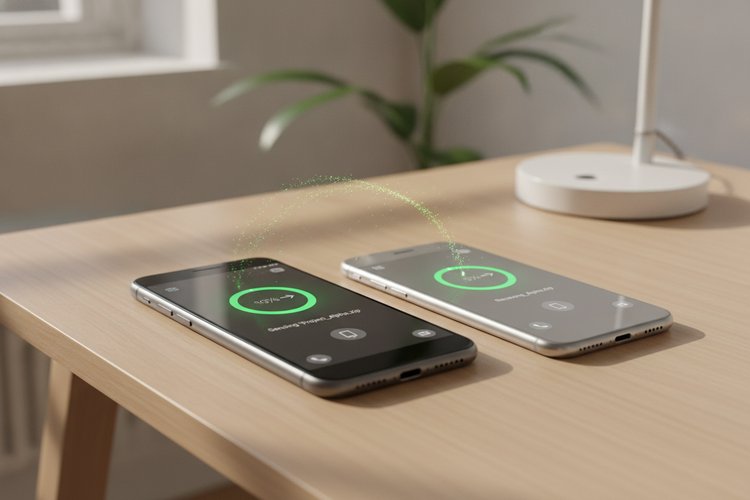
Switching operating systems or simply sharing photos between an Android smartphone and an iPhone can often feel like bridging two completely disconnected worlds. While transferring files between devices running the same operating system is seamless, cross-platform media transfers usually involve frustrating workarounds like sending compressed images over messaging apps or waiting for massive cloud syncs.
Fortunately, PhotoSync offers a direct, fast, and local solution to wirelessly transfer photos from Android to iPhone in full resolution. In this guide, we will walk you step-by-step through setting up and using PhotoSync, troubleshooting potential transfer roadblocks, and comparing it to other popular transfer tools.
Why PhotoSync is the Best Tool for Android-to-iOS Transfers
When transferring media cross-platform, reliability and image quality are paramount. PhotoSync stands out among wireless transfer applications for several key reasons:
- Original Quality Preservation: Unlike messaging apps like WhatsApp or Telegram, PhotoSync transfers photos and videos in their original resolution, retaining full EXIF data, GPS location tags, and creation dates.
- No Cloud or Computer Needed: The transfer occurs directly across your local Wi-Fi network using peer-to-peer communication, keeping your private photos local without consuming cloud storage or requiring a desktop connection. If you are interested in exploring other direct mobile transfer techniques, check out our guide on transferring photos from Android to iPhone without a computer.
- Cross-Format Compatibility: PhotoSync intelligently handles file format variations between Android and iOS. If you ever need to convert HEIC or PNG assets for web publishing, you can also utilize our free WebP converter online.
- Background & Bulk Transfers: You can transfer thousands of photos at once without the transfer timing out or freezing midway through.
Prerequisites for Transferring Photos Between Android and iPhone
Before initiating the transfer, ensure both devices meet the following basic requirements for a smooth and uninterrupted experience:
- Active Wi-Fi Connection: Connect both your Android phone and iPhone to the exact same Wi-Fi network router. If no Wi-Fi network is available, you can enable a personal hotspot on one device and connect the second device to it.
- PhotoSync Application Installed: Download and install the official app on both devices from the PhotoSync official website or directly through the Google Play Store and Apple App Store.
- App Permissions Granted: Grant PhotoSync full permission to access your photo library on both Android and iOS devices so it can read and write media files.
- Sufficient Battery Level: Ensure both devices have at least 20% battery remaining, or keep them plugged into a charger during large transfers.
Step-by-Step Guide: How to Transfer Photos Using PhotoSync
Follow these detailed steps to initiate and complete a seamless photo transfer from Android to iPhone.
Step 1: Install and Launch PhotoSync on Both Devices
Open the Google Play Store on your Android device and search for “PhotoSync”. Tap install. Likewise, open the Apple App Store on your iPhone and install PhotoSync. Once installed, launch the PhotoSync app simultaneously on both your Android phone and your iPhone.
Step 2: Connect Both Devices to the Same Network
Verify that both smartphones are connected to the same Wi-Fi SSID. PhotoSync utilizes local network discovery protocols (mDNS/Bonjour) to automatically discover nearby devices running the application.
Step 3: Select and Send Photos from Android
- On your Android device, open PhotoSync to view your device’s photo gallery organized by albums or recents.
- Tap on the photos or videos you wish to transfer. Selected items will display a checkmark overlay. You can also tap the multi-select icon in the top right corner to select entire albums.
- Once your selection is complete, tap the red Sync button (represented by a cloud or transfer icon) located in the upper right corner.
- Select Send from the action menu, then choose Phone / Tablet as the target destination.
Step 4: Detect and Accept the Connection on iPhone
- PhotoSync on Android will search your local network for active targets. Your iPhone’s device name will appear on the screen. Tap on your iPhone’s name.
- On your iPhone, a prompt will appear asking to authorize incoming photos from your Android device. Tap Allow or Accept.
- The transfer process will begin immediately, displaying a real-time progress bar along with file transfer speed indicators.
- Once complete, open the native Photos app on your iPhone. The transferred photos will automatically appear in your main Library as well as a designated “PhotoSync” album.
PhotoSync vs. Move to iOS: Which Should You Use?
Many users switching from Android to iPhone consider Apple’s official Move to iOS app. Here is how PhotoSync compares to Move to iOS:
| Feature | PhotoSync | Move to iOS |
|---|---|---|
| Setup Requirement | Works anytime on existing setup | Only during initial iPhone setup |
| Selective Transfer | Yes (Pick specific photos/albums) | No (All or nothing) |
| Speed & Reliability | High (Direct local Wi-Fi) | Moderate (Prone to dropouts) |
| Bi-directional Transfer | Yes (Android to iOS & vice versa) | No (Android to iOS only) |
If you are already past the initial setup phase on your new iPhone or only want to transfer specific photo albums, PhotoSync is considerably more convenient than factory resetting your device to use Move to iOS.
Troubleshooting Common PhotoSync Connection Issues
If your Android device fails to locate your iPhone during setup, review these quick troubleshooting tips:
- Disable Local Network Isolation: Some Wi-Fi routers (especially guest networks) enable AP isolation, preventing devices on the network from talking to each other. Connect both devices to a standard private Wi-Fi network.
- Check iOS Local Network Permissions: On your iPhone, open Settings > Privacy & Security > Local Network and ensure the toggle next to PhotoSync is turned ON.
- Toggle Wi-Fi On/Off: Turn Wi-Fi off and back on for both smartphones to refresh local IP addresses.
- Use Direct IP Search: If auto-discovery fails, tap the target search settings in PhotoSync on Android and manually enter your iPhone’s IP address (found in PhotoSync settings on iOS under Receive > Wi-Fi).
Frequently Asked Questions (FAQ)
Is PhotoSync free to use?
PhotoSync is free to download and offers basic photo/video transfers over Wi-Fi. Premium features, such as transfer over mobile data or automatic background backup, require a low-cost one-time license or subscription.
Does PhotoSync reduce photo resolution?
No. PhotoSync transfers original image and video files without applying additional compression, preserving raw quality and full EXIF metadata.
Can I transfer photos without a Wi-Fi connection?
Yes. You can turn on personal hotspot mode on one device, connect the other device to that hotspot, and transfer photos directly via PhotoSync without an internet connection.
Conclusion & Next Steps
Transferring photos from Android to iPhone does not have to involve complex cloud uploads or computer cables. PhotoSync offers a streamlined, fast, and secure solution for moving high-resolution photos cross-platform in minutes. By following the steps outlined above, you can effortlessly keep your photo memories synced regardless of which smartphone operating system you choose.